Guides
Getting started with Handy Addons
Install the plugin, find the widgets in Elementor, fill one in and give it a design. Five minutes, with no…
Posts or pages in cards: the newest, a category, or ones you pick by name. Every card is one link, cards in a row line up, and more posts come by page numbers or a “Load more” button.
Posts, pages or picked by handCategories, tags, authorsImage above or besideReading timePage numbers or “Load more”Cards that line upOne link per card
Design
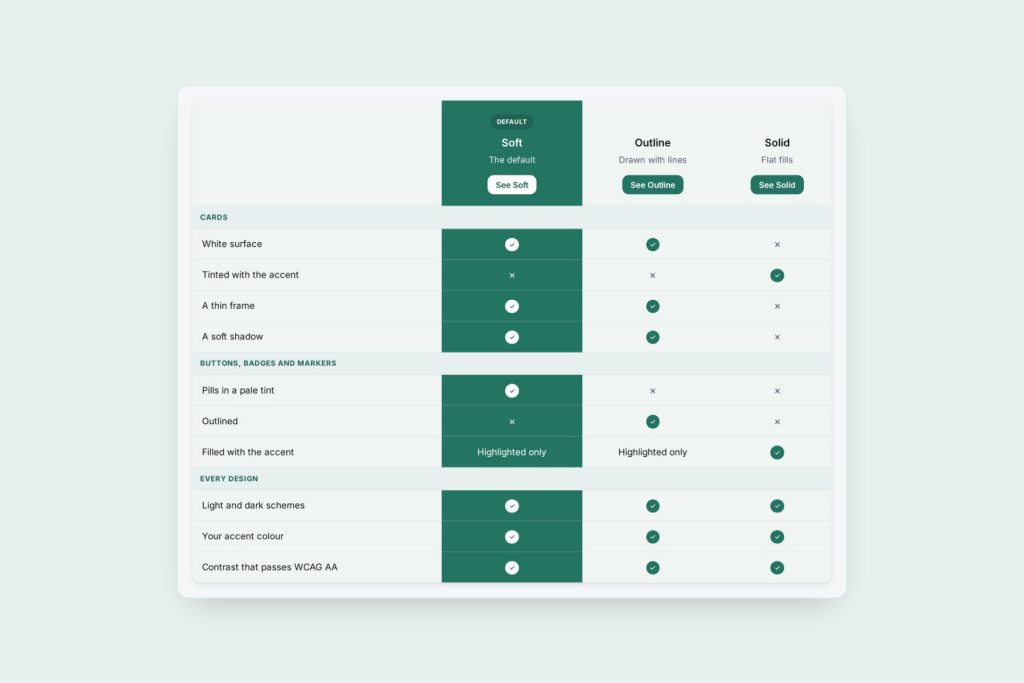
The default: white cards with a thin border, generous rounded corners and a soft shadow, pill-shaped controls, and pale tints of the accent.
Guides
Install the plugin, find the widgets in Elementor, fill one in and give it a design. Five minutes, with no…
Read more
Guides
Every widget comes in three designs, each with a light and a dark colour scheme. Here's what tells them apart,…
Read more
Guides
Paste cells from Excel or Google Sheets, or import an Excel, CSV or JSON file, or a link. Then turn…
Read more
Dark colour scheme
The same design with the Dark colour scheme, for dark sections and dark sites.
Guides
Install the plugin, find the widgets in Elementor, fill one in and give it a design. Five minutes, with no…
Read more
Guides
Every widget comes in three designs, each with a light and a dark colour scheme. Here's what tells them apart,…
Read more
Guides
Paste cells from Excel or Google Sheets, or import an Excel, CSV or JSON file, or a link. Then turn…
Read more
Design
Drawn with lines: framed cards with small corners, outlined buttons, labels and badges, and the accent in the lines.
Guides
Install the plugin, find the widgets in Elementor, fill one in and give it a design. Five minutes, with no…
Read more
Guides
Every widget comes in three designs, each with a light and a dark colour scheme. Here's what tells them apart,…
Read more
Guides
Paste cells from Excel or Google Sheets, or import an Excel, CSV or JSON file, or a link. Then turn…
Read more
Dark colour scheme
The same design with the Dark colour scheme, for dark sections and dark sites.
Guides
Install the plugin, find the widgets in Elementor, fill one in and give it a design. Five minutes, with no…
Read more
Guides
Every widget comes in three designs, each with a light and a dark colour scheme. Here's what tells them apart,…
Read more
Guides
Paste cells from Excel or Google Sheets, or import an Excel, CSV or JSON file, or a link. Then turn…
Read more
Design
Flat filled shapes: cards in a pale tint of the accent with no border and a small lift in the light scheme, solid buttons and markers, and the highlighted part filled with the accent.
Guides
Install the plugin, find the widgets in Elementor, fill one in and give it a design. Five minutes, with no…
Read more
Guides
Every widget comes in three designs, each with a light and a dark colour scheme. Here's what tells them apart,…
Read more
Guides
Paste cells from Excel or Google Sheets, or import an Excel, CSV or JSON file, or a link. Then turn…
Read more
Dark colour scheme
The same design with the Dark colour scheme, for dark sections and dark sites.
Guides
Install the plugin, find the widgets in Elementor, fill one in and give it a design. Five minutes, with no…
Read more
Guides
Every widget comes in three designs, each with a light and a dark colour scheme. Here's what tells them apart,…
Read more
Guides
Paste cells from Excel or Google Sheets, or import an Excel, CSV or JSON file, or a link. Then turn…
Read more
More options
Two columns of cards with the image beside the text, two guides a page, and page numbers that change the posts in place. Here in Outline.
Guides
Install the plugin, find the widgets in Elementor, fill one in and give it a design.…
Read more
Guides
Every widget comes in three designs, each with a light and a dark colour scheme. Here's…
Read more
No images, the guides in alphabetical order, the category left out and a blue accent: a quiet list for a sidebar or a footer.
Questions that open one by one, a search box for long lists, links that open a given answer, and FAQ…
Read more
Every widget comes in three designs, each with a light and a dark colour scheme. Here's what tells them apart,…
Read more
Install the plugin, find the widgets in Elementor, fill one in and give it a design. Five minutes, with no…
Read more
Paste cells from Excel or Google Sheets, or import an Excel, CSV or JSON file, or a link. Then turn…
Read more
How Handy Addons loads only what a page uses, and how to switch off the widgets you don't need at…
Read more
Let visitors read a PDF without leaving the page: pages, thumbnails, search, zoom, download and print, drawn on your own…
Read more
Guide
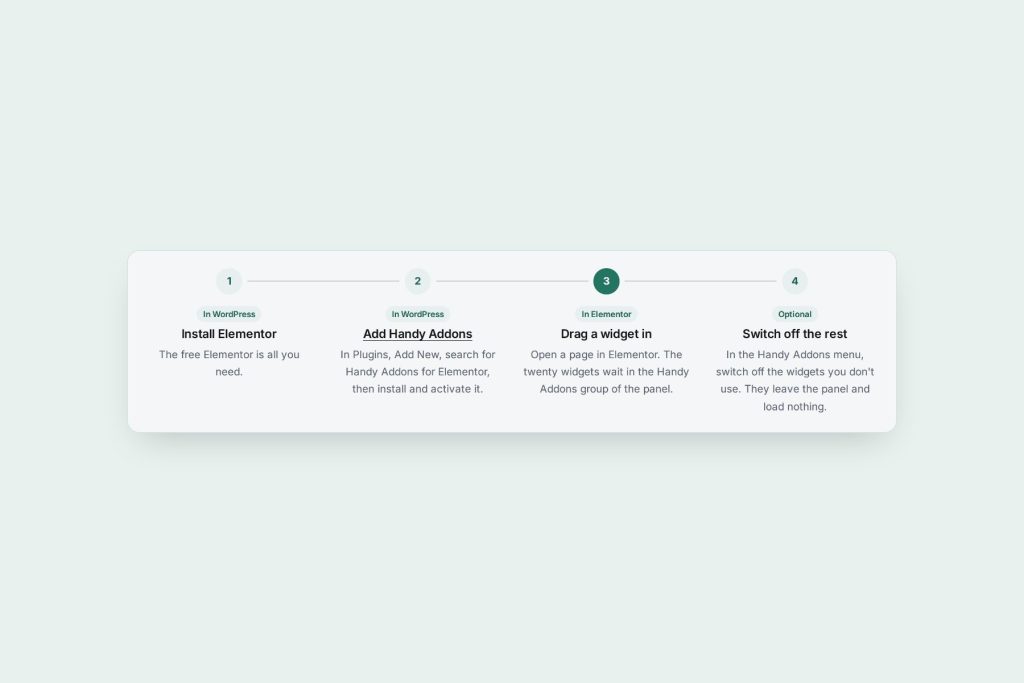
Four steps from an empty page to a finished post grid.
Open a page in Elementor, search the panel for "Post Grid" or open the Handy Addons group, and drag the widget onto the page.
Pick posts or pages, then narrow them by category, tag or author, or choose “Picked by hand” and search for them by name. On a blog or archive template, “This page's posts” shows what WordPress lists there.
In the Style tab, the Design section sets the design, the colour scheme and the accent colour.
Every colour, font and spacing is a normal Elementor setting, with your global colours and fonts in the pickers.
The widget's settings, tab by tab.
Elementor’s own: margins, padding, position, responsive visibility, CSS classes and attributes, as on any widget.
FAQ
Yes. Choose one or more categories, tags or authors, or pick the posts by name.
No. It adds the next posts in place, moves the focus to the first new one and tells screen readers how many were added.
Choose “With links” and page numbers become WordPress’s own /page/2/ links, which search engines follow. Without links, they change the posts in place, which suits related posts.
Yes. In a blog, archive or search template, choose “This page’s posts” and it shows what WordPress lists there, with its paging.
Cards in a row take the height of the tallest, and “Read more” sits at the foot of each, so a longer title next door never leaves a gap.
Photos in a grid, masonry or justified rows, with filters, captions and a viewer that opens them full size.
What customers say, as cards in a grid or a carousel, with photos, roles and star ratings.
An icon, image or number with a title, a description and a link or button, above or beside, in a card that can link as a whole.
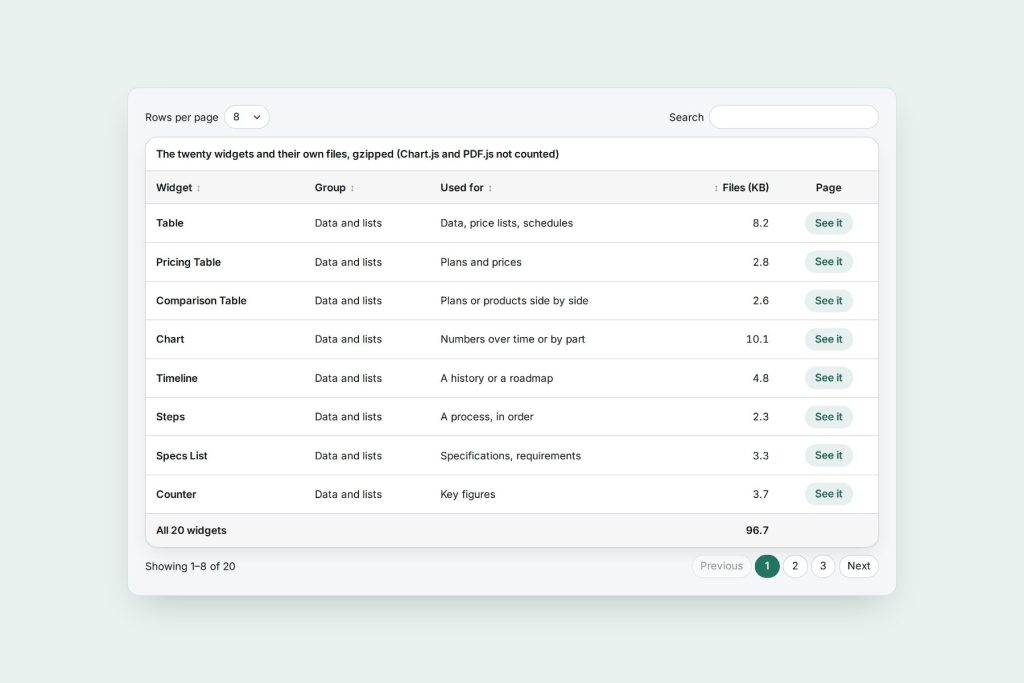
Install Handy Addons from WordPress.org, open a page in Elementor, and find them in the Handy Addons group of the panel.
May we count visits with Google Analytics, to learn which pages help? It sets cookies, so it runs only if you agree. Privacy policy