Docs / Guides
Import a spreadsheet into a table
Paste cells from Excel or Google Sheets, or import an Excel, CSV or JSON file, or a link. Then turn on sorting, search and pages.
Guide · 2 min read
Open the data editor
Add a Table widget, then click Edit data in the panel. A grid opens over the page, like a spreadsheet: type in the cells and move between them with the arrow keys. Click Apply when you’re done, and everything is written at once, as one step you can undo.
Paste from a spreadsheet
Select the cells in Excel or Google Sheets, copy them, click a cell in the grid and paste. The table grows to fit.
Import a file or a link
In the data editor, import an Excel, CSV or JSON file, or the address of a CSV or JSON file online. A Google Sheet works too: in Google Sheets, choose File, Share, Publish to the web, pick CSV, and paste the link it gives you.
Good to know: an import copies the data once. The table doesn’t stay linked to the file or the sheet, so a later change there won’t show until you import again.
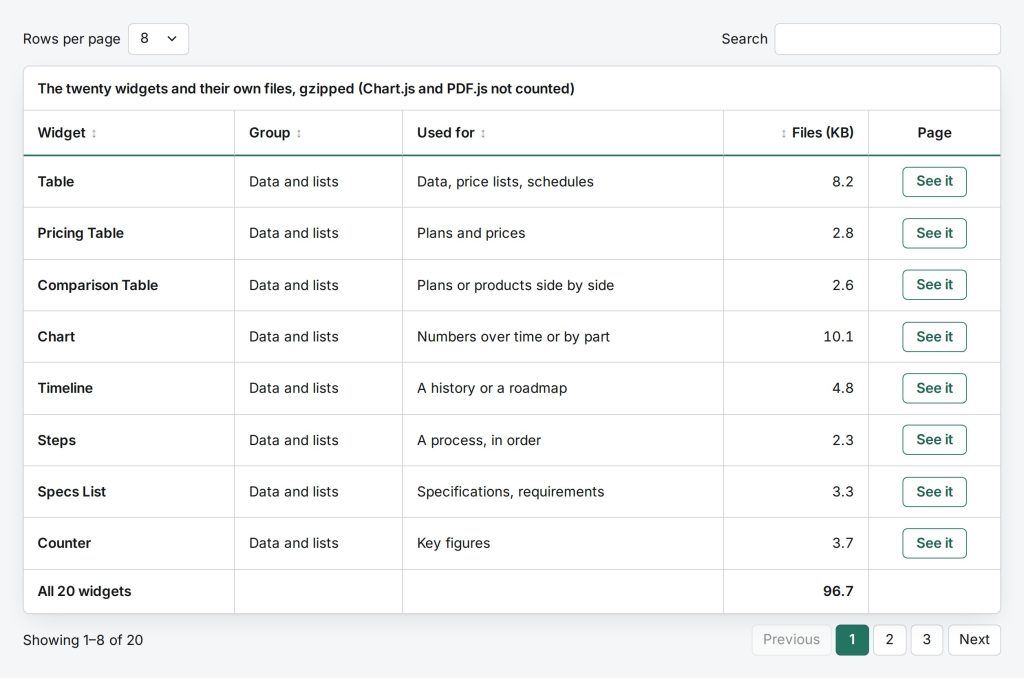
Sorting, search and pages
In the panel, turn on sorting, and each column header sorts the rows. Each column can sort as text, numbers or dates, or not at all, and the table can open already sorted by one column. Turn on search and pages for long tables: search ignores case and accents, and visitors choose how many rows a page shows.
Cells that do more
A cell can hold more than text: rich text with bold and links, a number whose digits line up, an icon, an image, or a button. Set the type in the side panel of the data editor.
Take it back out
Export CSV in the data editor saves the grid as a CSV file that Excel opens correctly. Nothing leaves your browser.
Widgets in this guide
Table
Data tables edited like a spreadsheet: import, sorting, search, pagination and responsive layouts.
Chart
Bar, line, area, pie, doughnut and radar charts from data you type, paste or import, with an accessible data table.
Comparison Table
Plans or products side by side, with checks and crosses per feature, a highlighted plan and a one-plan view on phones.
Twenty widgets, free, in three designs.
Install Handy Addons from WordPress.org, open a page in Elementor, and find them in the Handy Addons group of the panel.