Docs / Guides
Add an FAQ to a page
Questions that open one by one, a search box for long lists, links that open a given answer, and FAQ schema for search engines and AI tools.
Guide · 2 min read
Write the questions
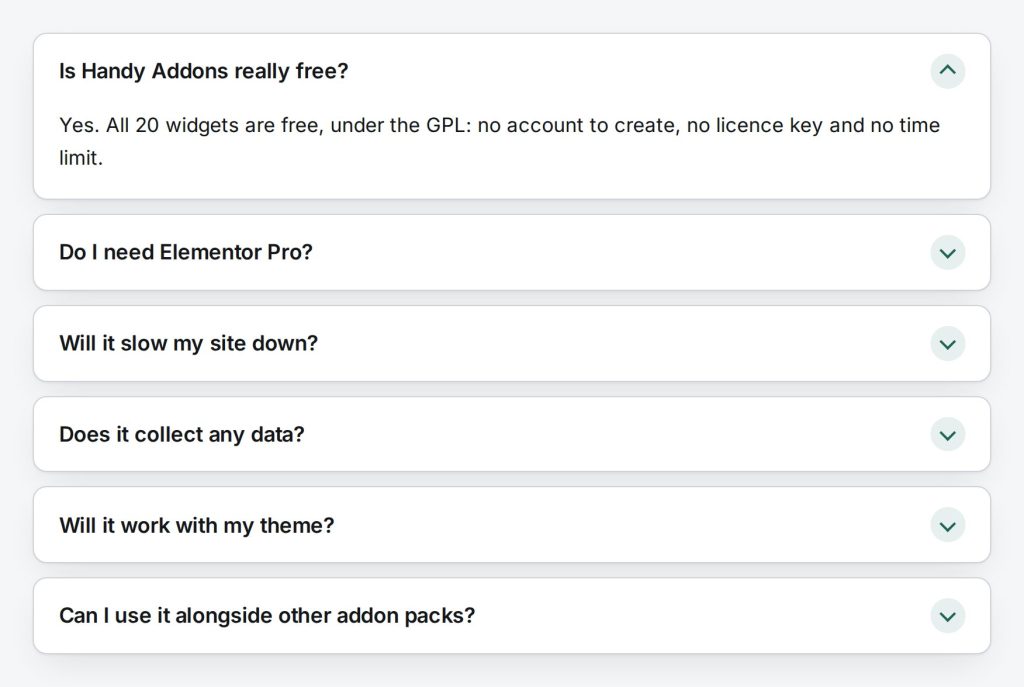
Add the Accordion and FAQ widget. In its Items list, each item is a question and its answer, with the full text editor for the answer. Choose which item starts open, if any, and whether opening one closes the others.
A search box for long lists
Turn on the search box and it sits above the questions. As visitors type, it keeps the questions that hold every word, and says how many match, to screen readers too.
Link to an answer
Give an item a link name, such as returns. A link ending in #returns, from this page or another, opens that answer and scrolls to it.
FAQ schema
Turn on FAQ schema and the widget adds your questions and answers to the page as structured data (FAQPage), which search engines and AI tools read.
Honestly: Google stopped showing FAQ results in its search pages in May 2026. Other search engines and AI tools still read the markup, so it does no harm, but don’t expect FAQ boxes under your result in Google.
When to use tabs instead
An accordion suits many short answers, read one at a time. For a few long sections side by side, such as a product’s description, specifications and delivery, the Tabs widget fits better. On phones, tabs can turn into an accordion.
Widgets in this guide
Accordion and FAQ
Questions and answers, or any sections, that open one at a time or together, with FAQ schema if you want it.
Table of Contents
A table of contents built from the page's headings: nested or flat, numbered, collapsible, with smooth scrolling and the current section highlighted.
Twenty widgets, free, in three designs.
Install Handy Addons from WordPress.org, open a page in Elementor, and find them in the Handy Addons group of the panel.